How to Open a Ticket
A Step-by-Step Guide for Efficient Support
This document provides a clear and concise guide on how to effectively open a support ticket within the Segura Portal. By following these steps, you can ensure your requests are handled promptly and efficiently by the support team.
Step 1: Access the Segura Portal.
First, navigate to the Segura Portal using your preferred web browser. You will need your login credentials to proceed.
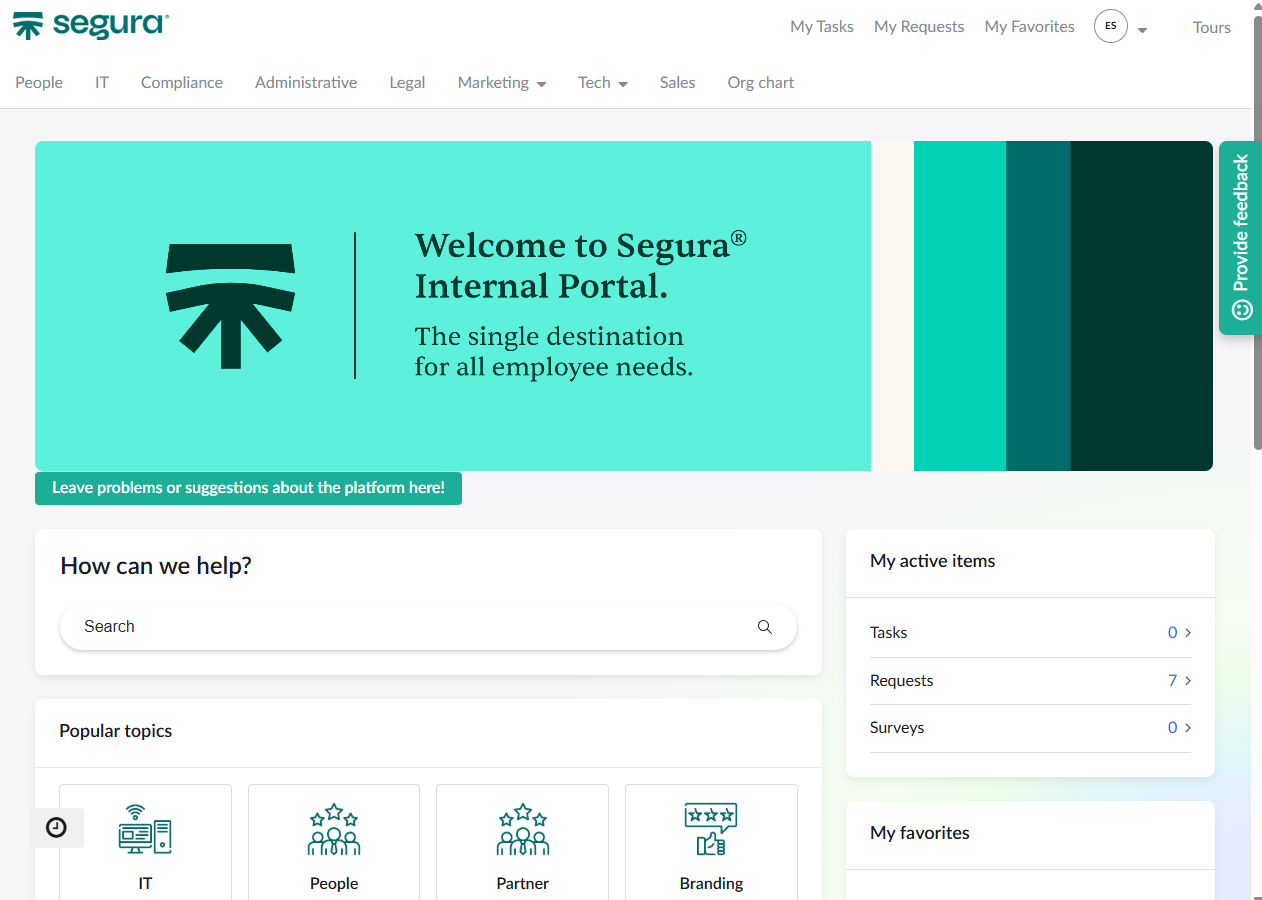
Step 2: Log In to Your Account
Enter your username and password in the designated fields. If you have forgotten your credentials, please follow the “Forgot Password” link to reset them.
Step 3: Locate the “Support” or “Help” Section
Once logged in, look for a menu item or a button labeled “Support,” “Help,” or “Open a Ticket.” This is typically found in the main navigation bar or a sidebar.
Step 4: Choose the Appropriate Category
To help the support team address your issue more quickly, select the category that best describes your problem or request. Examples might include “Technical Issue,” “Billing Inquiry,” or “Feature Request.”
Step 5: Fill Out the Ticket Form
You will be presented with a form to provide details about your issue. Please fill in all required fields accurately and thoroughly.
- Subject: Provide a clear and concise summary of your issue.
- Description: Elaborate on the problem. Include any error messages, steps to reproduce the issue, and what you have already tried to resolve it.
- Attachments (Optional): If relevant, attach screenshots, log files, or any other documents that might assist the support team.
Step 6: Submit Your Ticket
After reviewing all the information, click the “Submit” or “Create Ticket” button. You will typically receive a confirmation message with a ticket number. Please keep this number for future reference.
Step 7: Monitor Your Ticket Status
You can check the status of your ticket at any time by returning to the “Support” or “Help” section of the Segura Portal. You will also receive email notifications regarding updates to your ticket.
Thank you for using the Segura Portal for your support needs.